
The TPP Pay Pulse Merchant Portal is where you can find information about TPP Pay transactions.
Location
Go to TPP Pay > TPP Pay Pulse Merchant Portal in the toolbar to open the merchant portal in a new tab.
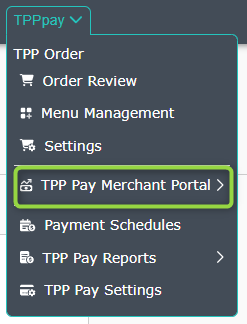
The TPP Pay Merchant Portal is only accessible by assigned Admins on your TPP account.
If you do not have this option in your toolbar TPP Pay drop-down then this means you are not an Admin.
Dashboard
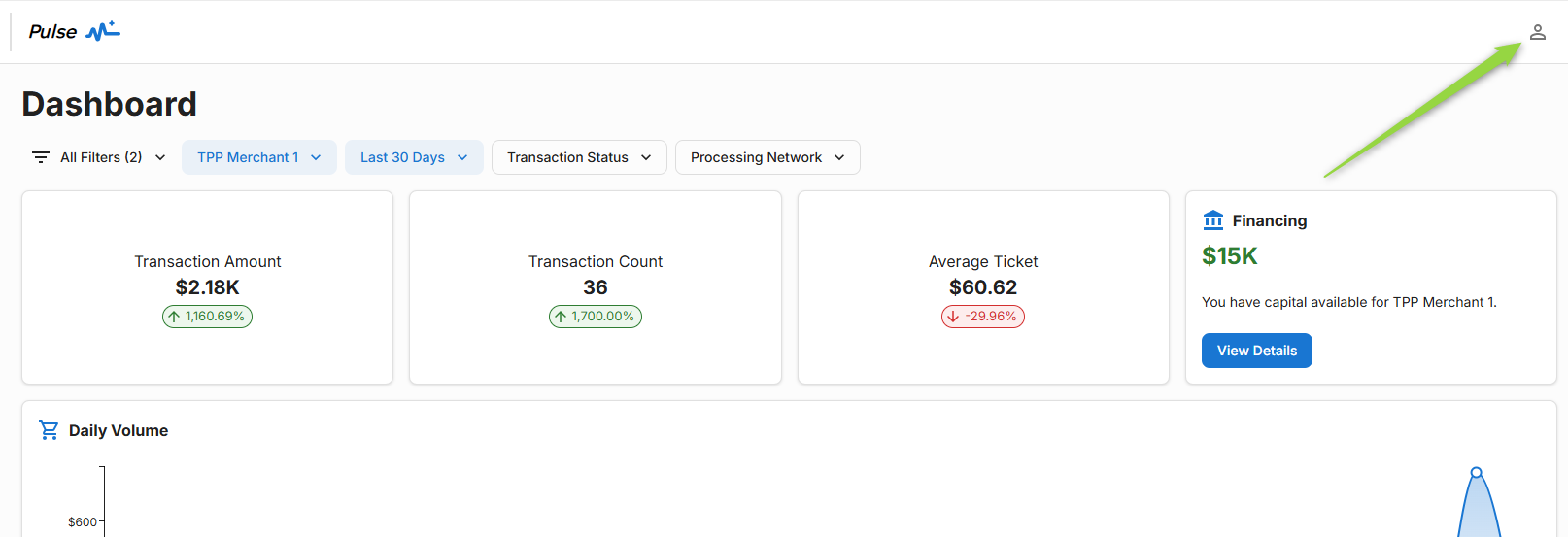
You will now be on the Pulse Portal Dashboard.
Main Area
There are a few shortcuts to the most used reports and a daily volume graph for review.
- Filters: The filters allow you to adjust between your TPP Pay accounts, filter in a date range, Transaction Status and Processing Network.
- Recent Funding Activity: Click to access the most recent Funding Summary Report.
- This report breaks down the details of any deposits you receive from TPP Pay/Fullsteam.
- This will also show any fees deducted from your account related to TPP Pay.
- Recent Transactions: Pulls a list of the transactions in TPP Pay from the last 7 days.

There are many options displayed on your Dashboard to explore: Transaction Amounts and Counts, Average Ticket intake, Merchant Capital Information, your Daily Volume, Recent Funding and Merchant Statement can all be easily accessed from your Dashboard!
Left Toolbar
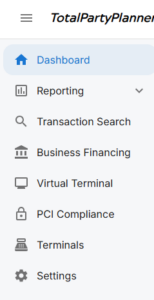
- Dashboard: Return back to the main page.
- Reporting: View many reports related to your TPP Pay transactions.
- Transaction Search: Search for transactions (Failed and Successful).
- Business Financing: Reach out to Payment Services directly for more information.
- Virtual Terminal: Process payments without an invoice.
- PCI Compliance: Verify your PCI Compliance.
- Terminals: Reach out to Payment Services directly for more information.
- Settings: Update General Settings or User Settings for your Portal.
Profile & Settings
Click the Profile Icon in the top right corner for a quick access to your Profile & Settings information.
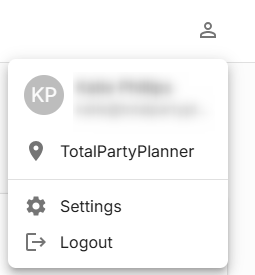
Here you can set your preference for sorting and see your Merchant ID (MID).