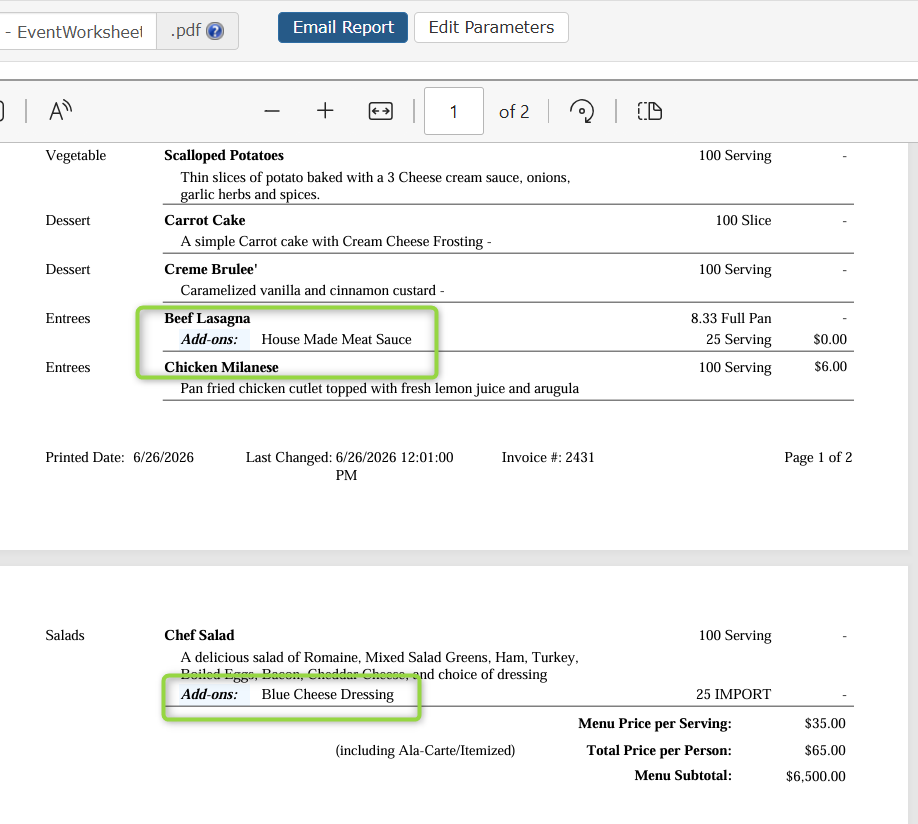
Menu item add-ons are optional extras or modifications that a customer can select for a menu item, allowing them to customize their order.
You can include an Add-On item to the main Menu Items by going into the Event > Menu and clicking on the name of the Menu Item you wish to include the Add-On.
Select the blue hyperlink “Chef Salad” on the menu and it will open the Menu Item’s editing window, from here you can select the dropdown for “Add-Ons”
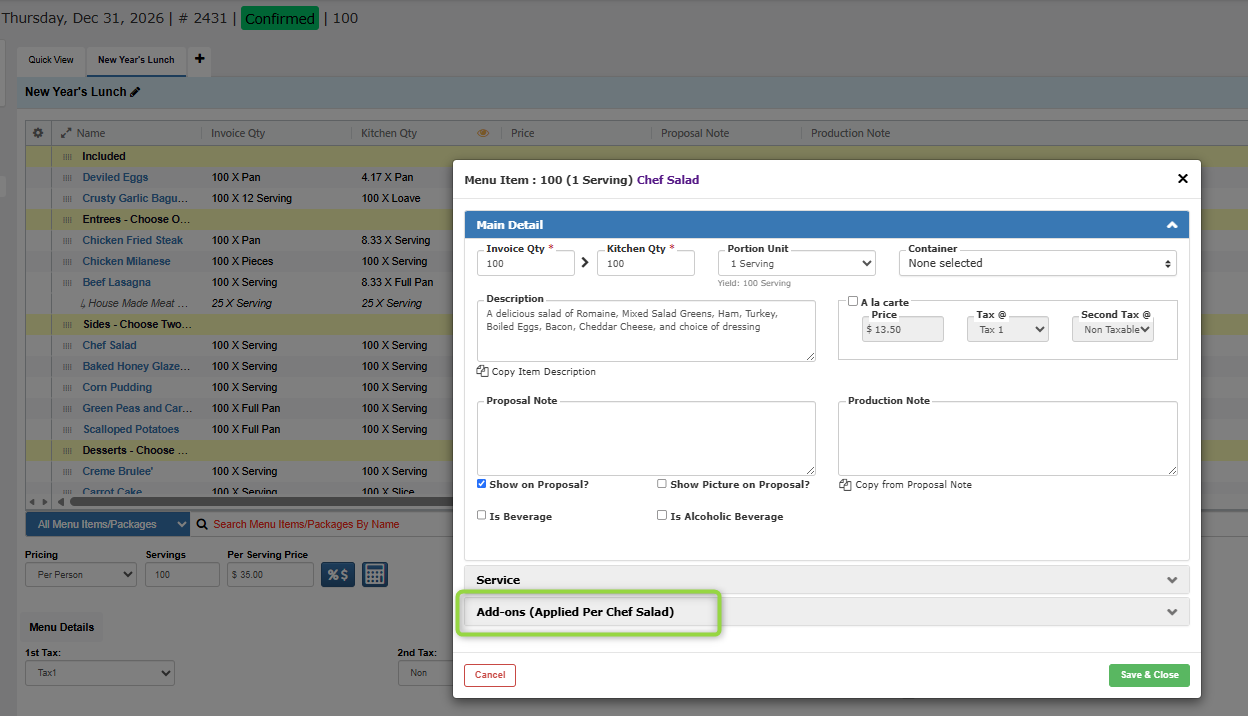
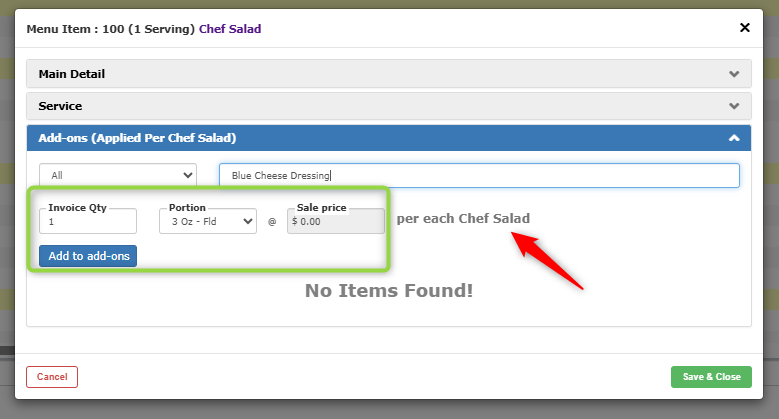
Use the “All” dropdown to search your Menu Items by Category or just type in the Menu Item you want to add and select the name of the item in the dropdown when it populates.

Add in the Invoice Quantity and Portion Amount need for the item and select “Add to add-ons” to apply your changes
Note: Please keep in mind that Menu Item Add-On amounts are per each for the main Menu Item.
If you want to break up the quantity amounts for your Add-On Items, you can include them in a decimal format
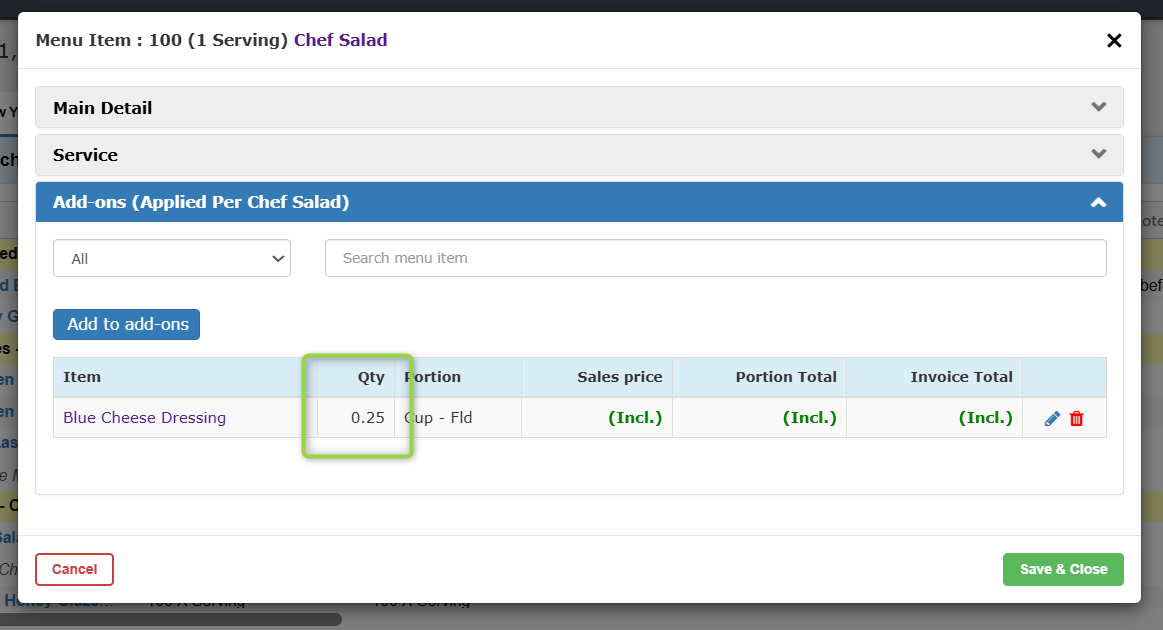
Editing Menu Item Add-Ons
You can edit an existing Add-On by selecting the name of the main Menu Item the Add-On is attached to and select the “Add-ons” dropdown.
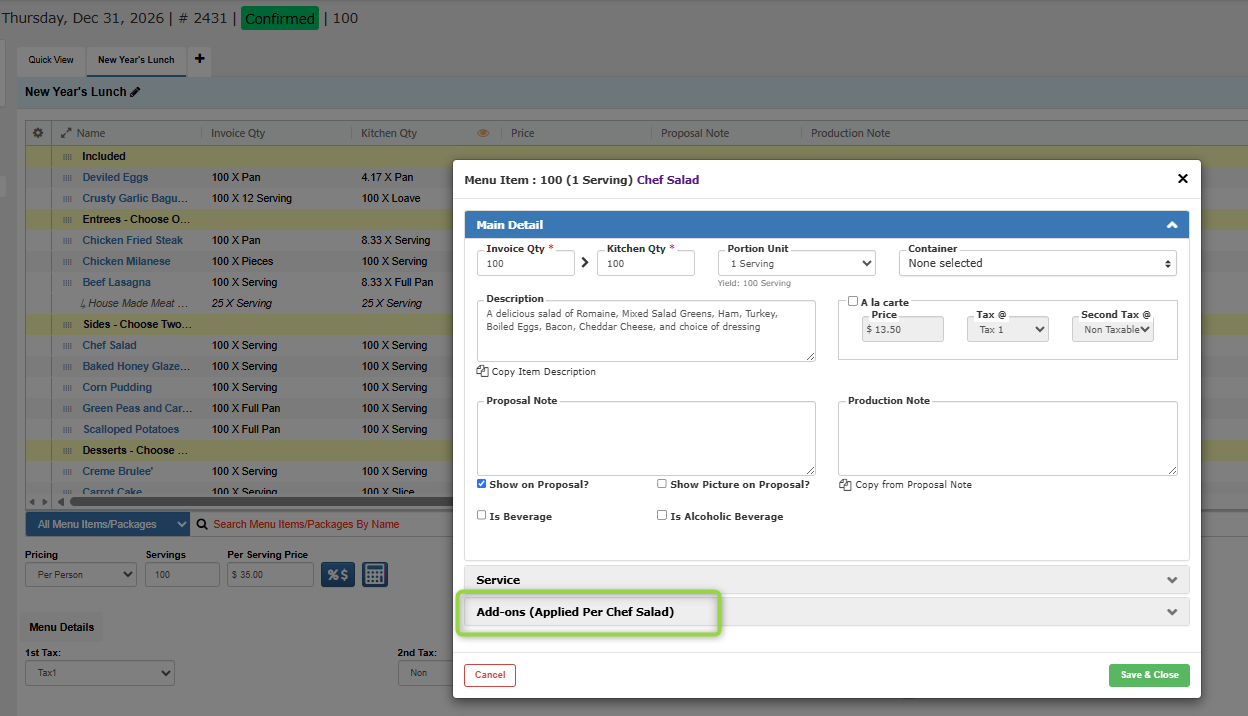
Select the Pencil Icon beside the Add-On to Edit
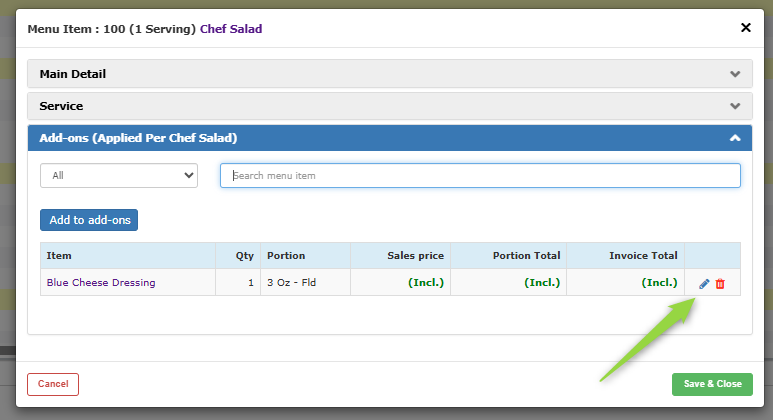
Then select “Save & Close” to save your new changes.
Menu Item Add-ons & Reporting
Menu Item Add-Ons appear on the Event Menu Item Production Worksheet under the main Menu Item they are attached to.
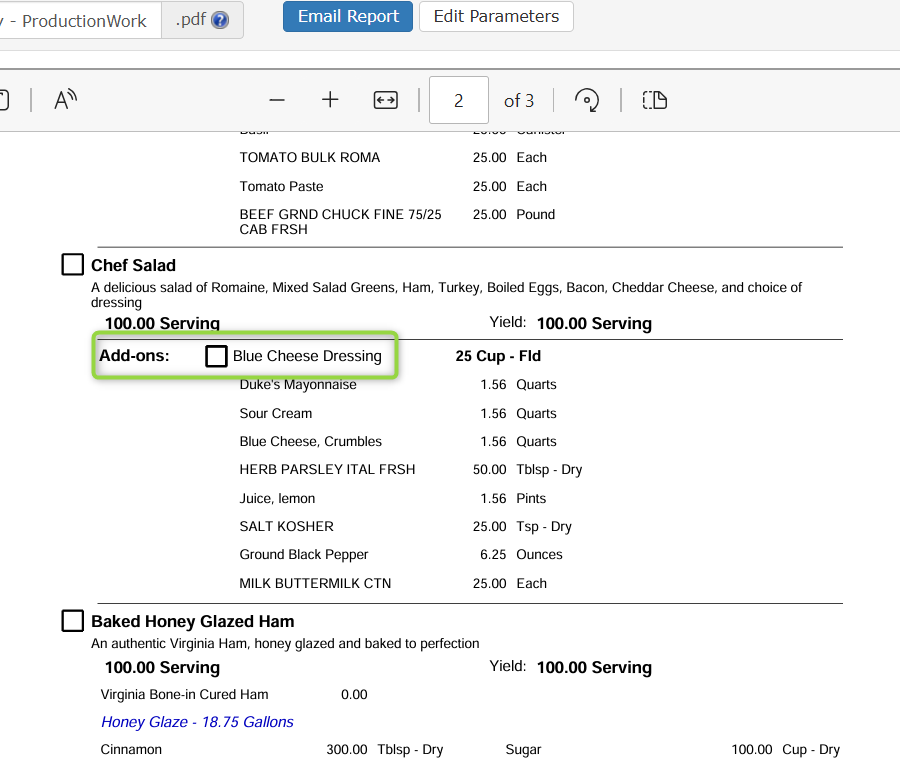
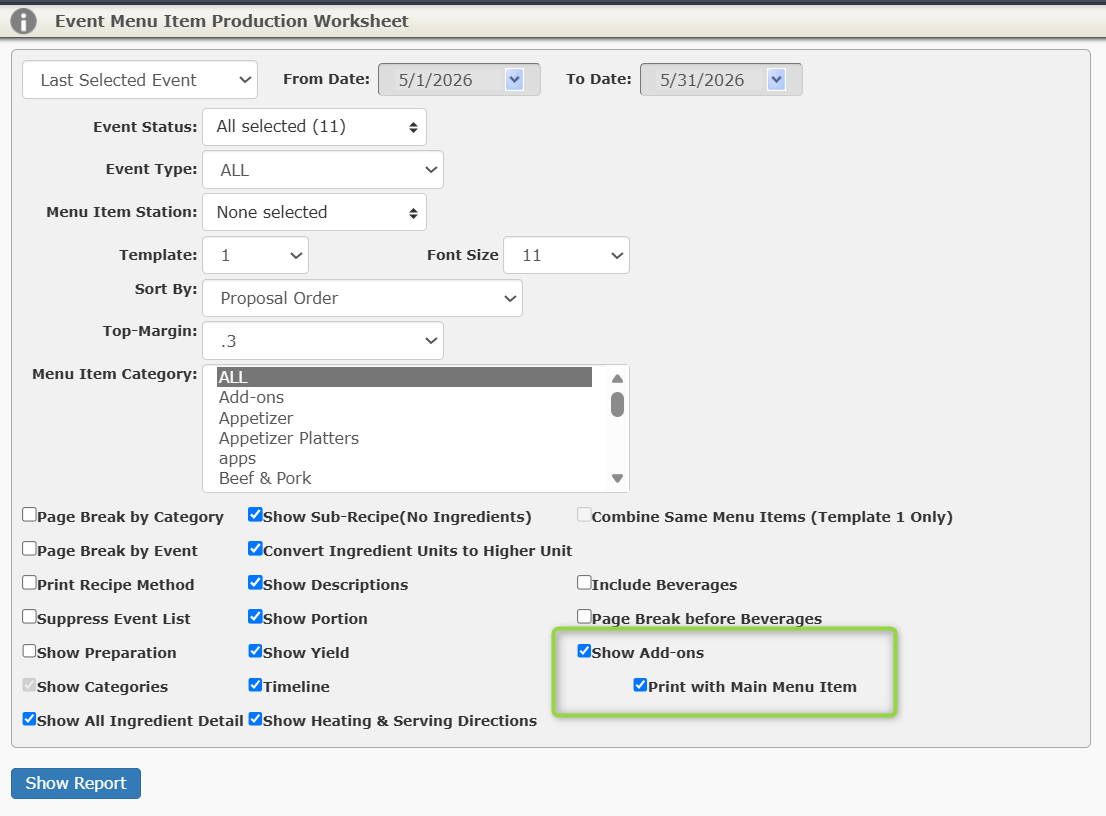
You can separate your Add-On items from the main Menu Item on the Event Menu Item Production Worksheet by going into Edit Parameters and unchecking the “Print with main menu item” field.
Add-Ons also show under the Event Worksheet under the main Menu Item: